
H5 Debug in Practice
H5 Debug in Practice (1): WeChat H5 Local Cache—Debug It on Desktop
Case: avatar stuck after account switch
During joint debug on an official-account H5, QA reported in the group chat:
“The H5 in the official-account menu—I logged in with a new test account, but the avatar is still the previous user. Clearing WeChat cache and re-entering from the menu didn’t help.”
The first suspects are usually:
- Login didn’t actually succeed?
- Backend cache?
- WeChat cached the API response?
So I captured traffic in DevPeek first.
GET /api/user/profile
The Authorization header already carried the new account’s token.
The response body had the new user’s id and nickname too.
From the server’s view, everything looked fine.
On the page, the avatar and nickname were still the previous test account.
That pattern usually means:
The API is fine, but the page isn’t using what the API returned.
The real problem is probably no longer HTTP—it’s the page’s own local cache.
Capture OK doesn’t mean the page reads the right data
Many H5 login flows write user info to:
- localStorage
- sessionStorage
- IndexedDB
Then rendering reads from cache instead of re-fetching every time.
If on account switch:
- the token updates
- cookies clear
- but storage doesn’t
you can get:
new user on the wire, old user on screen.
One easy-to-miss point:
After an HTTP request finishes, how the page writes the response into localStorage or IndexedDB is browser JavaScript runtime behavior—not something capture tools are built to show.
Capture is good at URL, headers, and body; param transform can decrypt encrypted bodies too. But localStorage.getItem('auth_token') never appears as a column.
So for many cases where:
- APIs look fine
- the page looks wrong
Network alone is hard to debug.
What’s missing is:
what the page JavaScript is actually reading from storage right now.
Desktop DevTools works—but WeChat WebView is different
Open the same URL in Chrome and you can go to:
Application → Storage
and inspect localStorage.
But QA needed reproduction in:
- the official-account menu
- WeChat QR scan
- WeChat share links
—real environments, not desktop.
Desktop Chrome and WeChat’s in-app WebView are often not the same runtime.
Editing storage on desktop doesn’t prove the WeChat issue is fixed.
At the time:
- capture confirmed the new token in headers;
- the WeChat page still showed the old avatar.
The two sides never lined up.
vConsole-style tools: fine for logs, awkward for storage
The team had used vConsole on H5; some colleagues used eruda or similar in-page panels.
For:
- Console
- Network
- JS errors
they work great.
Once you start digging into storage, it’s a different phase.
For example:
- localStorage is often view-only; edits usually mean switching to Console and hand-written scripts;
- IndexedDB plugins can list stores, but deep object stores are slow to browse on a phone screen;
- deleting a row or editing JSON often means calling
indexedDB.open(...)yourself; - the phone screen is small—capture, specs, and Storage sit on different devices, so cross-checking is slow;
- many teams bake debug tools into H5 ahead of time; ad-hoc joint debug doesn’t always have time for a new build.
WeChat WebView remote debug (chrome://inspect, Safari Web Inspector) can work, but WeChat version, OS version, and USB connection make it unreliable in practice.
Comparison from our joint-debug work (“vConsole-style” covers vConsole, eruda, and common Storage plugins; exact features vary by version):
| Capability | vConsole / eruda | DevPeek · Session |
|---|---|---|
| View localStorage | Generally supported | Desktop table view |
| Edit localStorage | Console scripts | GUI edit, push to device |
| sessionStorage | Plugin-dependent | Dedicated sub-tab, view and edit |
| document.cookie | Partial support | View and edit (HttpOnly hidden) |
| View IndexedDB | Supported | Tree browser |
| Edit IndexedDB | Mostly scripts | JSON edit, push to device |
| Same chain as capture | No | Network and Session on one page |
| Rollout | Usually baked into H5 | Proxy inject—see mobile web debugging |
vConsole isn’t useless.
Logs and JS errors—still a good fit.
What actually blocked us this time:
repeat edit, delete, and verify of storage and IndexedDB inside real WeChat.
On a small screen, that’s clearly slower than on a desktop.
Locating stale data with Session: old token in localStorage
Point the phone’s Wi‑Fi proxy at DevPeek, trust the root CA, and put business hosts in SSL decrypt scope. Full checklist: mobile web debugging; if the preview stays on “Waiting for device connection”, see FAQ for inject and WebSocket troubleshooting.
Once connected, the Debug tab mirrors the WeChat H5 page; switch the built-in panel to Session:
- On Capture, confirm decrypted HTML traffic for that phone.
- On Debug, pick the client tab; have QA re-enter from the official-account menu (stale tabs may miss inject).
- Session → localStorage—check token first, then user cache.
auth_tokenstill held the previous test account’s JWT.
Capture headers already showed the new token because requests sometimes read a fresh in-memory value; avatar rendering still read localStorage—two sources out of sync.
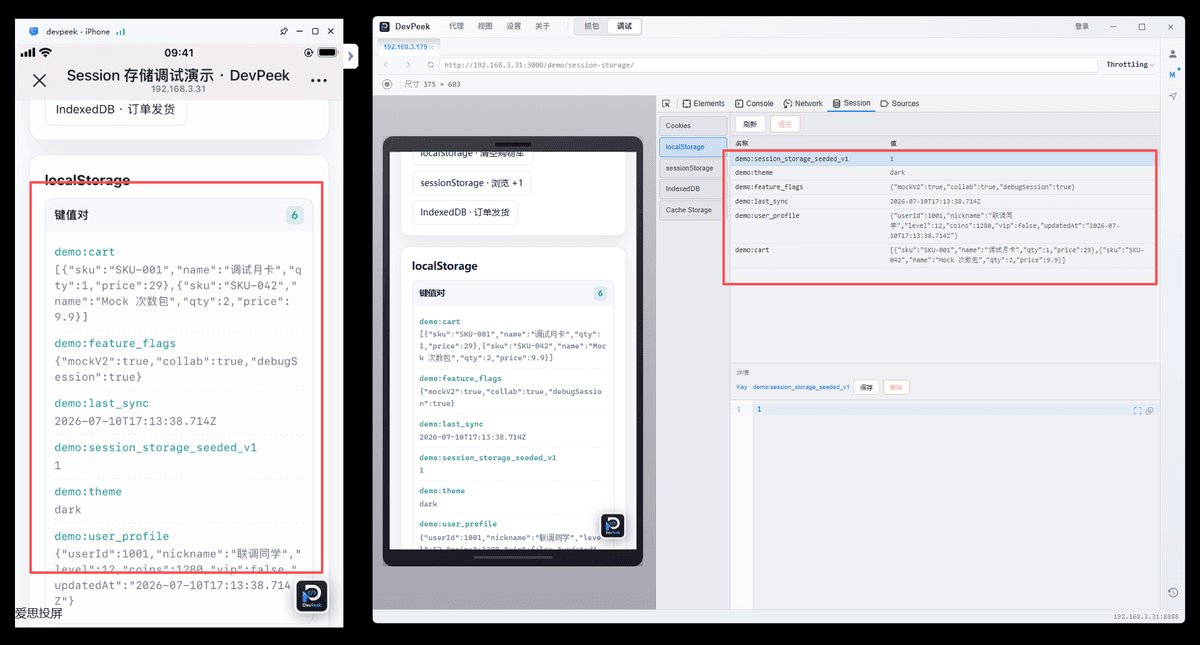
Edit key values on desktop and push to the real device—no localStorage.setItem in Console.
After editing auth_token to the new account and confirming push, delete:
user_profile_cache
Refresh the page—the avatar fixed immediately.
That pretty much confirmed where the bug lived.
DevPeek Session shows data the current page JavaScript can access—not every browser-level store. HttpOnly cookies, WeChat JSBridge, and mini-program native storage are out of scope; visible cookies can be checked in the Cookies sub-tab.
Second issue: draft order wouldn’t leave the list
After the avatar was fixed, QA raised another:
“After I delete a draft order and reopen the list, it comes back.”
That didn’t smell like localStorage.
Switch to IndexedDB and expand:
orders
The row was still in the database; the status field hadn’t updated either.
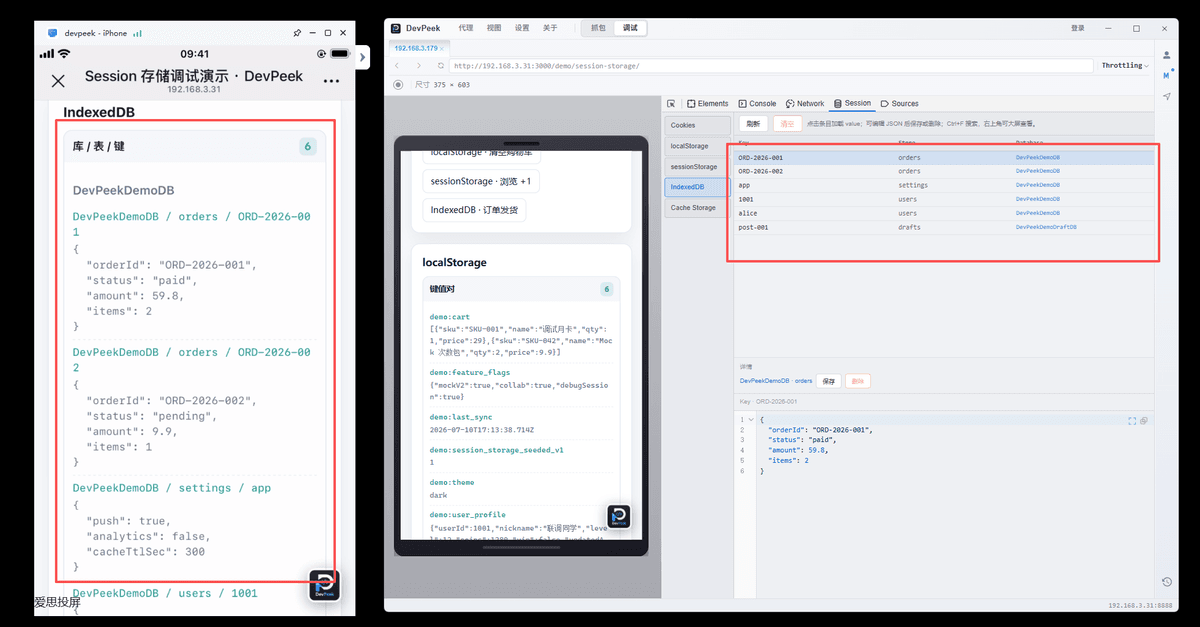
Expand the object store, edit JSON in the detail pane, and push—easier than hand-written indexedDB APIs on a phone.
Confirm the fields, edit JSON, push to the device; refresh—the draft order finally disappeared.
Many “delete failed,” “stale list,” or “offline data” issues are IndexedDB not syncing—not just a bad API response.
How I cross-check after fixing storage
After locating a storage issue, I usually confirm two more things:
- Back to Network in the debug panel—check whether later request headers match what I changed in Session;
- If I need different parameters, switch to Capture and open Debug API on the same row to resend—no Postman.
That keeps Session → Network → page on one debug chain; for bulk key clears or heavier scripts, Console remote eval works in the same context—confirm key names before wiping.
Limits and caveats
Not every cache issue is fixed by editing Storage. Full boundaries: mobile web debugging.
For example:
- localStorage updated but APIs still 401—the token may live in HttpOnly cookies or another login path; compare Network and Session;
- WeChat may cache old HTML—re-enter from the menu or add a cache-busting query;
- iframe pages are another origin—open that URL separately to debug.
Next
H5 Debug in Practice (2): Android WebView White Screen—From Console Remote Debug to Mock Validation—a campaign H5 white-screened on some Android devices; Console remote debug found a polyfill override, then Mock verified the fallback UI.
If you keep editing localStorage and IndexedDB in WeChat H5 joint debug, try DevPeek or discuss on GitHub Discussions. Setup: mobile web debugging; proxy and certs: proxy & SSL.