
Android companion: scan to capture and transfer
The Android companion uses a system VPN to route test-device HTTP(S) traffic to DevPeek without repeatedly editing Wi-Fi proxy settings. It also transfers text, images, video, and files between phone and desktop.
The Android companion has offered QR, link, and manual connection, certificate assistance, and transfer since 1.4.0. Per-app filtering and an iOS companion are not available yet.
Before you start
- Connect the desktop and Android test device to the same LAN.
- Start DevPeek, verify the proxy, and open the Phone panel on the right rail.
- Download the Android app from the Phone panel or the official APK URL.
- The pairing code contains a LAN proxy address. Keep it within a trusted test network.
Connect by QR code
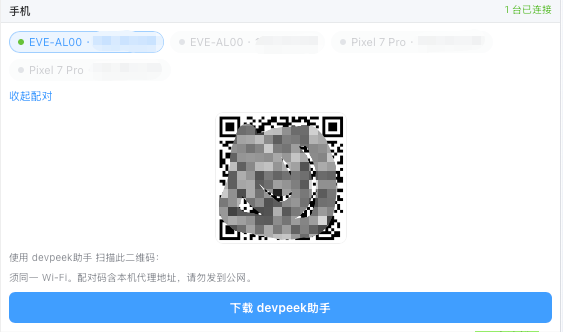
- Open the Phone panel on desktop to show the pairing QR code.
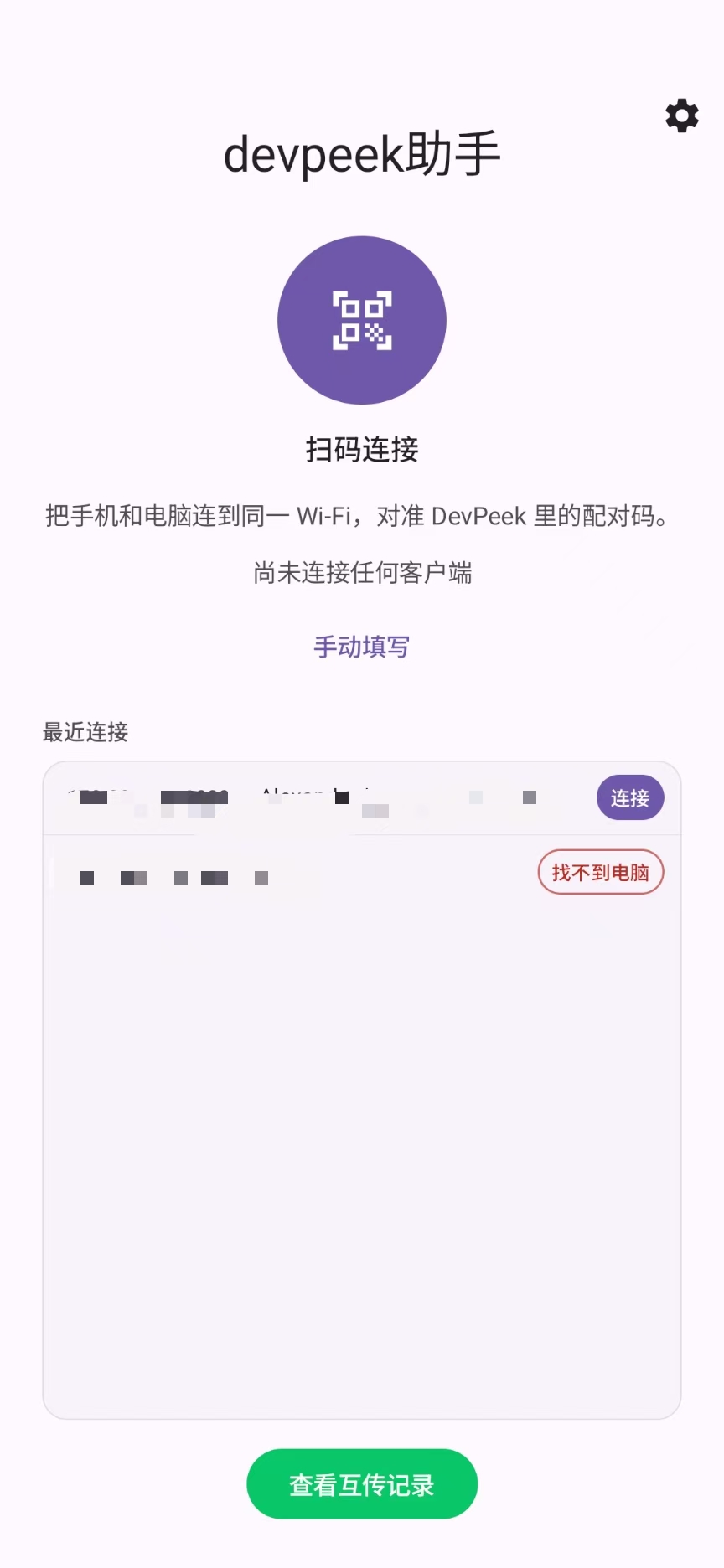
- Scan it in the Android app, or import an image, paste a link, or enter IP and port manually.
- Approve the Android VPN request. A green dot appears on the desktop Phone icon when connected.
- Visit an HTTP page in Chrome and verify traffic under the matching client tab.
- Recent computers are remembered and checked. A brief loss of the desktop keeps the VPN and shows that the phone is waiting; the VPN stops after the computer is off or has been unreachable for longer.
Install the HTTPS root certificate
VPN routing alone does not decrypt HTTPS. Install the DevPeek root CA on the test device and configure desktop SSL scope.
- After connecting, open Settings → Install certificate in the Android app.
- Tap Save and open settings. The file is saved as Downloads/devpeek-ca.crt.
- Open Security → Encryption & credentials → Install certificate → CA certificate. Do not choose VPN and apps.
- Set a screen lock first if Android requires it.
- Include the host in DevPeek SSL settings, refresh, and verify readable headers and bodies.
Android 7+ apps may reject user CAs. Chrome is usually suitable for validation; many production apps and certificate-pinned apps remain encrypted. Use an authorized debug build or test image—DevPeek cannot bypass certificate pinning.
Transfer between phone and desktop
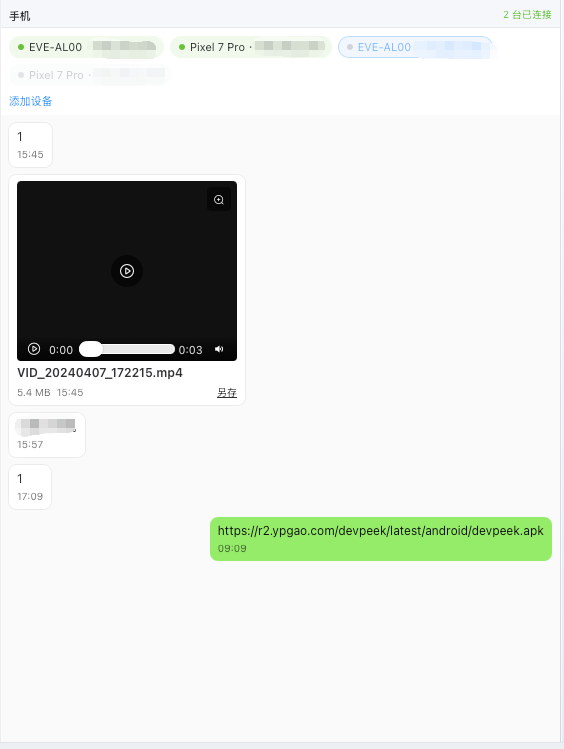
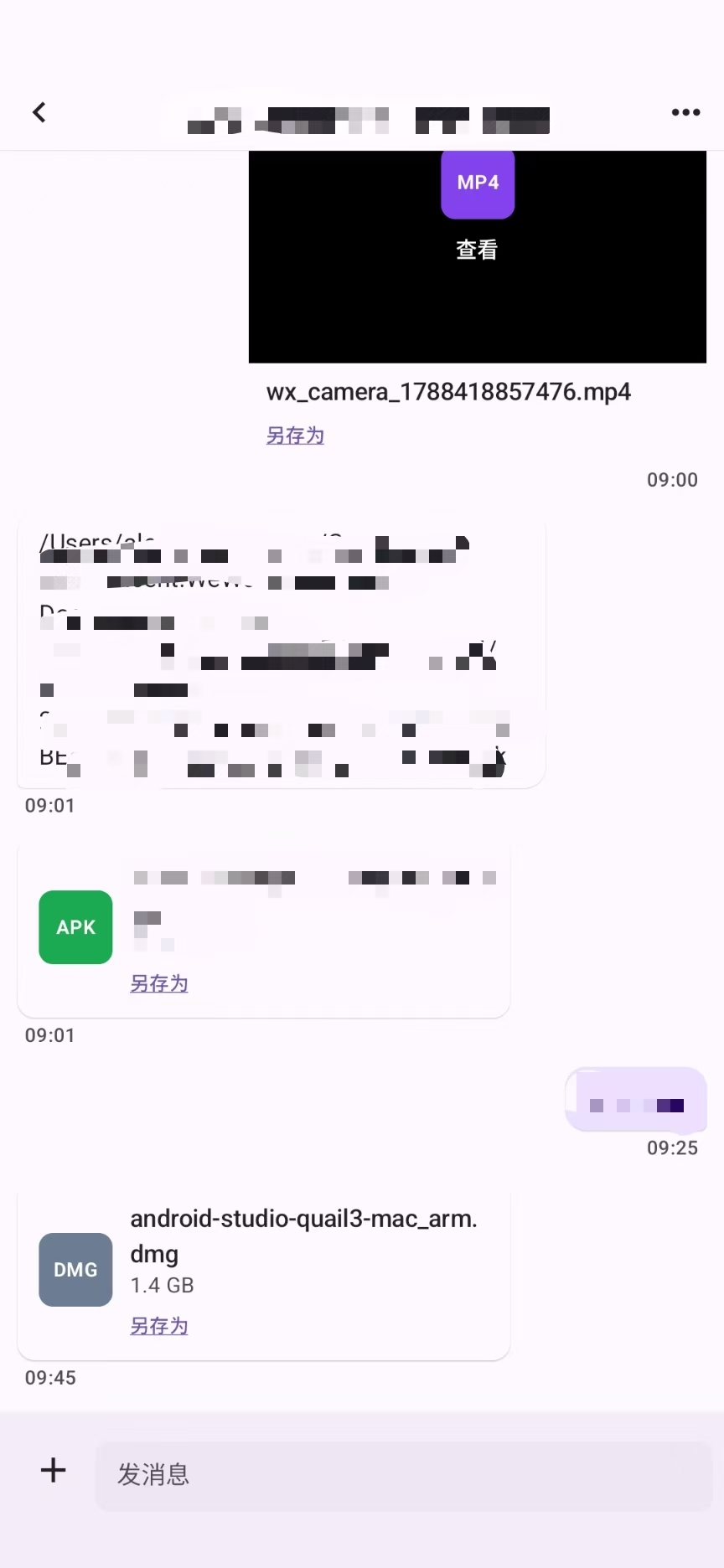
- Send text, images, and files in either direction after connecting; each file may be up to 2 GB.
- Transfer uses a separate channel and does not enter the capture list.
- Open images and videos in full-screen preview; Android supports long-press copy and video controls.
- Save received files on desktop or retry failures. Previous Android transfer history remains available offline.
Disconnect or switch computers
Tap Disconnect in the Android header to stop the VPN. A brief dropout keeps the VPN and shows a waiting state; disconnect yourself before changing networks, handing over a device, or enabling another VPN.
Troubleshooting
- Cannot scan: try image import, pasted link, or manual IP and port.
- Connection timeout: verify LAN reachability, current desktop IP, proxy state, firewall, and AP isolation.
- HTTP works but HTTPS fails: check CA installation, SSL include/exclude rules, and app trust policy.
- Browser works but one app fails: that app likely rejects user CAs or pins certificates.
- Transfer fails while capture works: the channels are independent; reopen the Phone panel or reconnect.
Read proxy & HTTPS / certificates · Read capture UI & requests